
How to Create a Floating Text & Image Effect in Premiere Pro
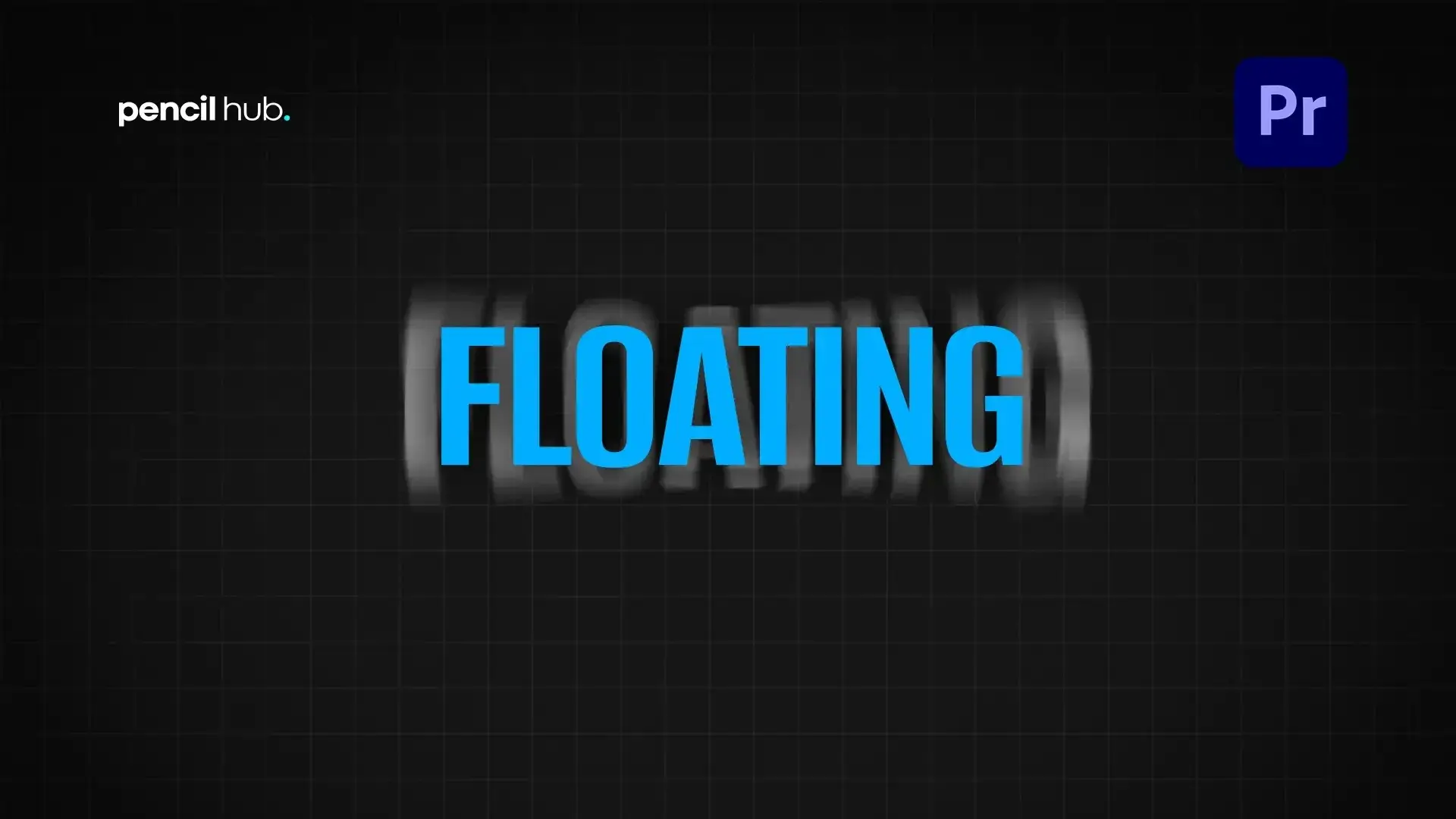
Want to make your titles, images, and graphics pop in your videos? Using the floating text and image effect in Adobe Premiere Pro, you can give elements a unique, subtle movement, making them appear as if they’re gently bobbing or hovering. This effect not only adds visual interest but can also enhance readability, highlight key features, and add a touch of professionalism.
Benefits of the Floating Effect
- Attention-grabbing: The subtle floating effect naturally draws the viewer’s eye.
- Enhanced Readability: Floating elements stand out against the background, improving clarity.
- Polished Look: The effect adds a refined touch that elevates your video content.
How to Create the Floating Effect in Premiere Pro
Follow these simple steps to animate text or images for a professional floating look:
Step-by-Step Guide
Select the Layer to Animate
Start by selecting the text or image layer you want to animate.
Add Keyframes
Go to the Effects Controls panel and locate the Transform properties. Click the stopwatch icon next to Position to set your first keyframe.
Animate the Float
Move the playhead forward by 3-5 frames. Adjust the X and Y position values slightly for a soft bobbing effect. Smaller changes create a gentle movement, while larger adjustments create a more noticeable float.
Repeat for Fluid Motion
Repeat the previous steps, moving the playhead forward and adjusting position values slightly. Aim for about 5-7 keyframes for a smooth floating effect. You can speed up the process by copying and pasting keyframes (Ctrl/Cmd + C, Ctrl/Cmd + V).
Smoother Animation (Optional)
Select all keyframes, right-click, and choose Temporal Interpolation > Bezier for a more natural movement. This smooths the animation path between keyframes, giving a more organic look.
Final Touches
- Preview the Animation: Playback your video to check the effect and make any necessary tweaks to the keyframes.
- Adjust Animation Speed: Experiment with how much you move the playhead between keyframes for faster or slower movement.
- Add Rotation (Optional): For a dynamic touch, adjust the Rotation property under Transform.
By following these steps, you can create an eye-catching floating text and image effect in Premiere Pro that enhances your video’s visual appeal and keeps viewers engaged. This technique is ideal for social media graphics, product callouts, or adding a unique flair to standard titles and infographics.